Roku Remote Control & TV Cast
- 4.8
- Rating
- 50.00K
- Installs
- Free
- Price
 Analysis by App-foxy
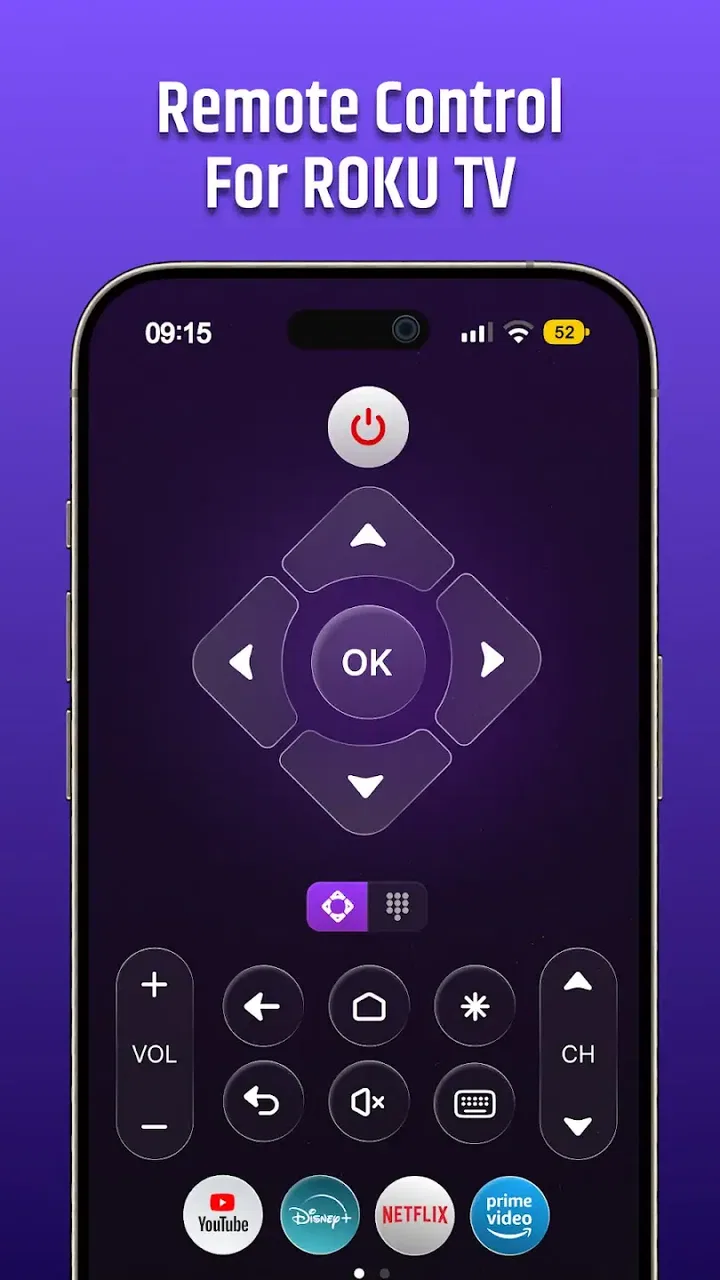
I find remote-control apps most useful when they remove a small but repeated annoyance rather than trying to replace every device in the house. Roku Remote Control & TV Cast takes that practical route. It turns an Android phone or iPhone into a controller for a Roku TV over Wi-Fi, while also adding photo and video casting and a more comfortable way to type. After using it as a tools app, I see its main appeal clearly: it is less about flashy extras and more about making everyday Roku interactions easier when the physical remote is inconvenient.
The app is free to install, and PrizePool Studios is the developer behind it. It has an average rating of 4.8 from around 4K ratings, with over 50K installs, which suggests that the basic idea is connecting with people who want a straightforward Roku companion. It is rated for Everyone, so its purpose is easy to understand even for someone who is not particularly comfortable with smart-TV settings. The current version is 1.3.2, and it runs on Android 7.0 or later.
How Roku Remote Control & TV Cast feels in everyday use
When I first use Roku Remote Control & TV Cast, I treat it as a convenient second way to reach the TV, not a replacement I need to depend on immediately. The useful first test is simple: open the app with the phone and Roku TV on the same Wi-Fi network, then try one menu command before moving on to typing or casting. That small check makes it easier to tell whether the connection is ready, which leads to the practical setup details that matter next.
You May Also Like

 Pandora - Music & Podcasts
Pandora’s Music Is Easy to Start, but Harder to Recover
Pandora’s strength is its low-effort path from a seed to a station. Its weak spot is how much confidence it asks you to place in connection, setup, and quiet recovery.

 AccuWeather: Weather Radar
AccuWeather Review: A Quick, Clear Forecast for Everyday Decisions
For everyday plans, the best forecast is the one you can understand quickly. AccuWeather makes rain timing, radar, and local conditions easy to act on, with a few trade-offs.

 Hill Climb Racing
Why Hill Climb Racing Still Turns Crashes Into One More Run
A tiny car, a bumpy hill and one more upgrade: Hill Climb Racing keeps resurfacing because its simple chaos makes every near-miss feel personal.

 AliExpress - Shopping App
AliExpress Makes Global Shopping Feel Personal, but Shoppers Bear the Risk
AliExpress turns a global marketplace into a pocket-sized discovery engine. Its reach is useful, its shopping loop compelling, and its trade-offs easy to miss.

 Lords Mobile: Kingdom Wars
Lords Mobile Is a Kingdom-Building Routine, Not a Quick Match
A case-by-case verdict on the building, battles, device demands, and social commitments that make Lords Mobile rewarding for some players and exhausting for others.

 PDF Scanner app - TapScanner
TapScanner Makes Paperwork Easier to Capture, Check, and Share
TapScanner makes scanning with a phone feel less like a rescue operation and more like a dependable step in getting work done. Its capture tools are useful, though not flawless.
More From Our News Desk
View All News


Speed expectations: quick control depends on the network
The first thing I would set correctly is the expectation around speed. This is a Wi-Fi remote, not an infrared handset, so the phone and Roku TV need to communicate through the same home network. When that connection is already in place, tapping a direction, selecting an item, or adjusting playback feels like the kind of interaction I expect from a modern remote app. The phone is not sending commands directly through the television screen; it is relying on the network path between both devices.
That distinction matters when deciding whether the app is right for you. If your physical remote is missing but your Roku TV is already connected to your home Wi-Fi, the app can be a convenient replacement. If the television has just been reset, has not joined the network, or is connected to a different network from the phone, the app cannot magically bypass that setup problem. In that situation, the traditional Roku remote is still the more dependable starting point.
I also like the typing angle because it addresses one of the slowest parts of using a TV interface. Searching for a film, entering an account detail, or naming something with an on-screen keyboard can be tedious with directional buttons. A phone keyboard is naturally better suited to text, and that makes the app more valuable than a simple duplicate of the physical remote. The improvement is especially noticeable when a search contains several words or when I need to correct spelling.
There is a small trade-off here: the phone must be unlocked and ready, while a physical remote is usually sitting on the sofa. For a single volume adjustment, reaching for the handset may be faster. For longer searches or repeated navigation, the phone becomes the better tool. That is the kind of practical difference that determines whether this app becomes part of your routine or remains an emergency replacement.
Heavy-use moments: where the extra functions matter
The app makes the most sense during busy viewing sessions rather than in isolated moments. Imagine having friends over, switching between several streaming choices, and needing to search for a title while someone is also asking to see photos from a recent trip. A physical remote can handle navigation, but the phone-based approach is more flexible because it combines control, text entry, and casting in one place.
The casting feature is useful for a different kind of task. Instead of searching through a streaming service, I can use the phone as the source for photos or videos and send that content to the Roku TV. This is a good fit for showing a group something that is already stored on the phone, such as holiday pictures, a short clip, or a recording that would be awkward to pass around on a small screen. It also avoids the need to find a separate cable simply for a casual viewing session.
My advice is to treat casting as a focused sharing tool rather than a replacement for every media app. The quality of the experience depends on the content, the phone, the television, and the network handling the transfer. A short personal video is a natural use case. A long session built around many large files may feel less convenient than opening a dedicated service directly on Roku. The app is strongest when it shortens the path from “this is on my phone” to “everyone can see it on the TV.”
Another useful workflow is typing a search on the phone while the television remains visible across the room. That lets me keep my attention on the results instead of repeatedly looking down at a tiny remote keypad. It is a modest feature, but it changes how quickly I can move through a catalog. For households where several people regularly search for content, this may be more important than the casting option.
There is also a resource trade-off during heavy use. A remote app does not need to be running constantly, but the phone screen, Wi-Fi connection, and casting activity can all affect how long the phone remains comfortable to use. I would not leave it open as a permanent control panel unless there were a real reason to do so. For ordinary remote sessions, opening it when needed should be the more sensible habit.
Reliability: recovery is part of the experience
With any network remote, reliability is not only about whether a command works once. It is also about what happens after the phone changes networks, the television wakes from standby, or the connection briefly becomes unavailable. The most useful recovery habit is simple: check that both devices are on the same Wi-Fi network before assuming the controls are broken. This catches many apparent failures without requiring complicated troubleshooting.
If a command seems delayed, I would avoid tapping repeatedly. Repeated taps can make it difficult to tell whether the app is slow or whether several commands are being processed together. Waiting briefly, confirming the television’s response, and then trying again is a better approach. This is particularly important when moving through menus, where multiple directional inputs can take you farther than intended.
The app’s value also depends on how often your home network changes. In a stable household setup, it should be easier to use than in a home with separate guest and main networks, frequent router changes, or a phone that automatically switches between Wi-Fi connections. Visitors may also run into this issue if they install the app temporarily but are not connected to the same network as the Roku TV.
I would keep the physical remote somewhere accessible even if I used the app regularly. That is not a criticism unique to this product; it is a sensible backup for any Wi-Fi-based controller. A physical remote can help with initial network setup or recovery when the phone cannot reach the television. The app is best viewed as a convenient everyday companion, not as the only possible route into the TV.
Privacy and comfort also influence reliability in a broader sense. Because the phone becomes part of the viewing setup, I would be cautious about handing it to guests if it contains personal notifications or unrelated apps visible on the screen. For private home use, that may not matter. In a shared environment, a separate household device could be a cleaner choice for casting and remote duties.
Device constraints: what to check before installing
The minimum Android requirement is version 7.0, so the app is available to a broad range of Android phones. That does not mean every older handset will feel equally comfortable. A dated phone may be perfectly capable of sending remote commands but less pleasant for typing, switching between apps, or handling media selection. Screen size, battery condition, and general responsiveness will shape the experience as much as the app itself.
On iPhone, the same practical questions apply: is the phone on the correct Wi-Fi network, is it convenient to keep nearby, and is the screen comfortable for typing? The app’s core purpose does not require a powerful phone, but casting and frequent use naturally make a newer, responsive device more pleasant. I would also remember that the television itself remains the limiting endpoint. The phone can provide the controls, but it cannot turn an incompatible display into a Roku TV.
The network arrangement deserves more attention than the app’s install size or category label. A phone connected through a guest network may be isolated from the television. Mesh systems can also present different connection paths even when both devices appear to use the same household internet service. If discovery does not work, checking the exact Wi-Fi name on both devices is more useful than immediately reinstalling the app.
In-app purchases range from $4.99 to $64.99 per item, so I would review any purchase screen carefully before committing. The app itself is free, which makes it easy to test whether the remote and casting workflow suits your home. For me, that trial period is important because the value depends heavily on how often I use a Roku TV and whether the phone is actually more convenient than the supplied remote.
The Everyone content rating makes the app approachable for general household use. Still, an age rating does not answer the practical question of who should use it. I would recommend it to someone who often searches on Roku, shares phone media on the television, or regularly misplaces the physical remote. I would skip it if I only need a remote for occasional volume changes and already have a reliable handset within reach.
Comparing it with the usual alternatives
The most obvious alternative is the physical Roku remote. That option wins for instant access, tactile buttons, and independence from Wi-Fi discovery. It is also the safer choice during setup or network trouble. The app wins when text entry, phone-based media, and convenience across the room matter more than physical simplicity.
The official Roku ecosystem is another natural comparison. A first-party option may be preferable for people who want the closest possible relationship to the television platform and are willing to use only the functions they need. Roku Remote Control & TV Cast is appealing when its combination of remote control, typing, photos, and videos matches the way you actually use your TV. I would not choose between them based only on the word “remote”; I would compare the specific workflow that matters in my home.
A universal remote can be better for a living room containing several brands of equipment, especially if one handset needs to control a television, sound system, and other hardware. This app is more focused. Its strength is the Roku TV relationship, not replacing every remote in a complicated entertainment setup. If your main frustration is switching between multiple devices, a universal controller may be the more efficient purchase.
Screen-mirroring tools can also be a better fit when the goal is to show an entire phone screen rather than selected photos or videos. This app’s casting purpose is more targeted, which can be an advantage because a focused workflow is easier to understand. On the other hand, anyone expecting full phone duplication should make sure the available casting behavior matches that need before relying on it for presentations or gaming.
What I would do before relying on it
I would install the app while the physical remote is still available, not after it disappears. That lets me confirm the Roku TV is discoverable, test navigation, and try typing without the pressure of an urgent problem. It also gives me a chance to see whether the phone’s Wi-Fi arrangement works properly in my home.
Next, I would test three separate tasks: a simple menu command, a longer text search, and a small photo or video cast. These reveal different parts of the experience. Remote commands show whether the connection is usable, typing shows whether the phone adds real convenience, and casting confirms whether the sharing workflow is worth keeping. Testing all three is more informative than opening the app once and assuming every function will behave the same way.
For a family, I would decide which phone should normally handle casting. Using one household device avoids confusion about which phone is connected and reduces the chance that someone interrupts a viewing session from another handset. For guests, I would prefer demonstrating the feature myself rather than passing around a personal phone with notifications and private content visible.
I would also avoid judging performance during a crowded or unstable network period. If several people are streaming, downloading, or moving around between access points, a delay may reflect the home network rather than the app’s controls. Testing it during normal conditions gives a fairer idea of whether it belongs in the daily setup.
Performance verdict: useful when convenience is the real problem
My overall impression is that Roku Remote Control & TV Cast is most convincing as a practical convenience app. The remote function covers the obvious need, but the phone keyboard and casting tools are what give it a reason to stay installed. I especially like the combination for households where searching is frequent or where photos and personal videos regularly need to move from a phone to a larger screen.
Its speed should be judged as a Wi-Fi experience, not as a direct duplicate of a physical remote. A stable network and compatible Roku TV setup are essential. When those conditions are met, the app can reduce friction; when they are not, recovery may require returning to the physical remote or fixing the network first. That dependence is the main limitation I would explain to a friend before recommending it.
The free installation makes experimenting straightforward, although the listed in-app purchase range means I would pay attention during setup and use. I would not install it simply because it has a high average rating. I would install it because I need easier typing, occasional phone-to-TV sharing, or a backup controller that is usually nearby.
For someone with an older Android handset, the minimum requirement of 7.0 is reassuring, but comfort still depends on the device’s screen and battery. For someone with a complicated multi-device entertainment system, a universal remote may be more suitable. For someone who only wants to mirror everything from a phone, a dedicated mirroring solution may be a clearer match.
My recommendation is conditional but positive: if you own a Roku TV and regularly search, navigate, or share personal media, this app offers useful advantages over reaching for the physical remote every time. I would keep the traditional remote available for setup and network recovery, then use the app for the tasks where a phone is genuinely better. That balance gives Roku Remote Control & TV Cast a clear place in the home without pretending that a Wi-Fi controller can solve every television problem.
FAQs for Roku Remote Control & TV Cast
01What is Roku Remote Control & TV Cast, and what can it do?
Roku Remote Control & TV Cast is a companion app designed to control compatible Roku streaming players and Roku TVs from a mobile device. After connecting to the same Wi-Fi network, it generally provides navigation buttons, playback controls, keyboard input, volume functions on supported devices, and options for casting or mirroring selected media. Available features can vary by Roku model, phone, operating system, and app version.
02How do I connect the app to my Roku device?
To connect Roku Remote Control & TV Cast, your phone and Roku device normally need to be connected to the same wireless network. Open the app, allow any requested local-network permissions, and select the Roku device detected on your network. If it does not appear, check that both devices use the same Wi-Fi band or network, disable VPN or guest-network isolation, restart the app, and confirm that the Roku is powered on and accessible.
03Does Roku Remote Control & TV Cast work with every Roku player and Roku TV?
Compatibility is not guaranteed for every Roku product. The app is intended for many Roku streaming players and Roku TV models, but support may depend on the device generation, regional software, network configuration, and the Roku operating-system version. Before downloading, check the app-store description and your Roku settings for compatibility information. Some advanced controls, including volume or power functions, may work only with certain Roku TVs.
04Can I cast or mirror videos, photos, and music to Roku with this app?
The app may offer casting or screen-mirroring tools for supported photos, videos, music, and web content, but results depend on the media format, source application, Roku model, and phone operating system. Casting is not the same as universal support for every streaming service, and protected content may block mirroring. A stable Wi-Fi connection is important, while high-resolution video may require stronger network performance.
05Is Roku Remote Control & TV Cast free, and are there advertisements or subscriptions?
The app may be available to install without an upfront charge, but free access can include advertisements, feature restrictions, or prompts to purchase a premium version or subscription. Pricing and included tools can change between Android and iOS and may also vary by country. Review the current store listing and in-app purchase screen before subscribing, especially if you only need basic remote-control functions.
Pros
- Simple interface makes basic remote functions easy to find.
- Works with Roku TVs and streaming players on the same Wi-Fi network.
- Keyboard input can make searching for movies and shows faster.
- Private listening may be useful when you connect compatible headphones.
- Casting photos and videos adds more than standard remote controls.
Cons
- The app cannot control Roku devices outside your local Wi-Fi network.
- Some casting and remote features may vary by Roku model.
- Ads or premium prompts can make the free experience feel less seamless.
- Battery use may increase if the app stays active during extended viewing.
- Unofficial apps may require extra permissions that some users may dislike.

Roku Remote Control & TV Cast
Gallery